You have a file on one Mac and want to copy it to another Mac, either yours or someone else’s. Sounds easy, and it is, but the best way to go about it varies widely depending on circumstances, and your go-to method may not be the best choice, depending on the size of the file and the locations of the Macs. Here are some possibilities:
- Email: It’s easy to attach a file to an email message, but most email providers limit the attachment size, such as 20 MB (iCloud) or 25 MB (Gmail). Thus, email is best for sharing small files with other people—there are better ways of moving files among your own Macs. Attachments also take up significant space in your email account, and running out of space will cause new messages to bounce.
- Messages: For relatively small files, dropping a file in an iMessage (blue bubble) conversation in Messages works well as long as the file is smaller than 100 MB. Remember that files sent in Messages consume iCloud and local storage space unless deleted, so this approach is also best reserved for occasional use.
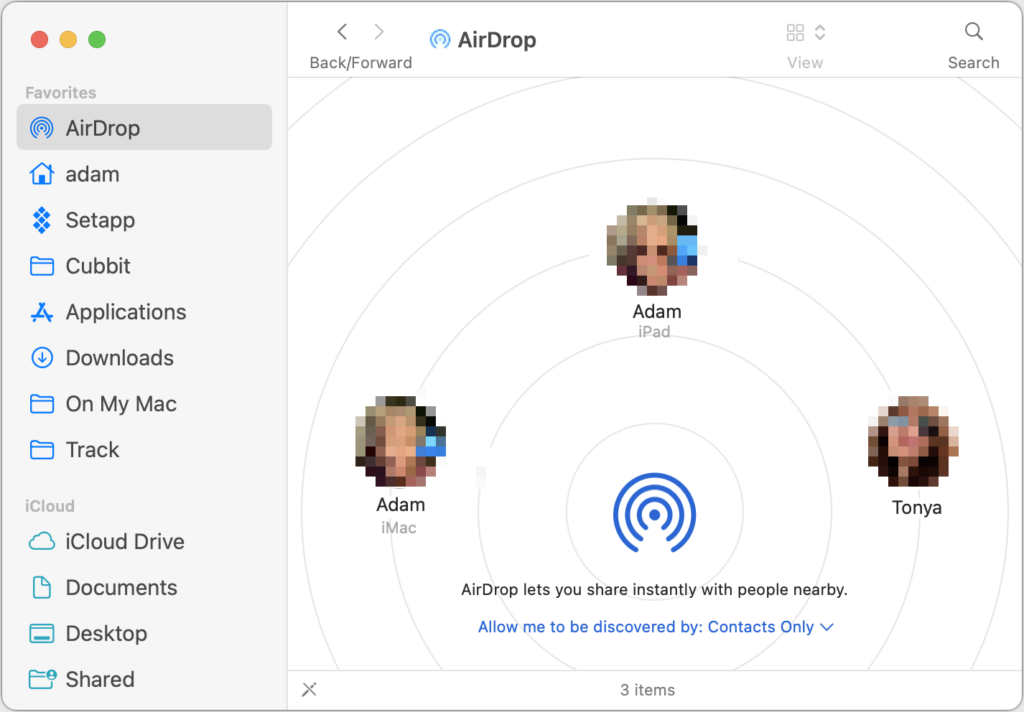
- AirDrop: To copy a file to another Mac in the same room, AirDrop is the most convenient solution. Make sure it’s turned on in Control Center on both Macs and the discovery options are correctly set. Bluetooth and Wi-Fi must be on, but the Macs don’t need to be connected to any network or to iCloud. To transfer a file, select AirDrop in a Finder window sidebar (enable it in Finder > Settings > Sidebar if necessary) and drop the file on the icon for the other Mac. Or Control-click the file, choose Share, click AirDrop, and select the desired Mac. AirDrop has no file size limits, but it’s not the fastest approach and might have issues with multi-gigabyte files or older Macs. Received files appear in the Downloads folder.
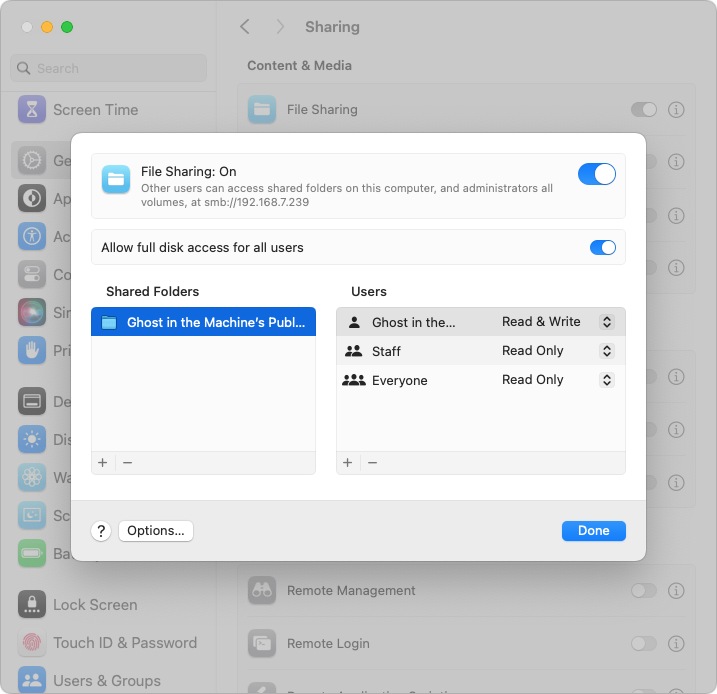
- File Sharing: Regularly copying files between Macs on the same network is best done with network file sharing. It’s fussy to set up, requiring one Mac to be set as the file server in Settings > General > Sharing > File Sharing. Then click the info icon to add shared folders, designate users, and set access privileges. (In macOS 14 Sonoma, the temporary “Allow full disk access for all users” option for the server Mac may simplify things.) To connect to the server Mac, in the Finder, choose Go > Network, and click the Connect As button to log in if necessary. On the plus side, once you’ve configured everything and made aliases or sidebar items for quick access, file sharing is easy and fast.
- Network server or NAS device: If you need to copy files between several Macs on a network, it may be better to use a dedicated server or NAS (network-attached storage) device as an intermediary. (Or, instead of copying files locally, you can access the files directly on the server or NAS. This requires a fast network.)
- Target Disk Mode: The fastest option for moving huge files around occasionally is Target Disk Mode over a Thunderbolt connection between two Macs. The setup differs between Intel-based Macs and Macs with Apple silicon, but once one Mac is in Target Disk Mode, it appears in the Finder of the connected Mac as an external drive, and you can drag files to and from it. It’s most appropriate for transferring many gigabytes of files.
- External storage: Never underestimate the speed and ease of copying files to external storage, whether an SSD, hard drive, or USB flash drive, and then copying them off to another Mac.
- Cloud storage service: Box, Dropbox, Google Drive, and iCloud Drive can all work well for moving files between Macs, although they’re best used with files under a few hundred megabytes. For sharing among your Macs, they’re particularly convenient, and it’s usually easy to copy a link to a file to share it with someone else, though that sometimes requires setting sharing permissions first. iCloud Drive sometimes has problems updating quickly.
- File sending service: The best way to send a large file via email, Messages, or another messaging service is to send a link. That’s easy if the file is already in a cloud storage service, and some email apps and services automatically create links for attachments over a certain size. Otherwise, try a file sending service such as Files to Friends or WeTransfer, which email links to files up to 1–2 GB in size for free. Many other services exist but allow only smaller files for free.
With so many options, you should have no trouble finding one that meets your needs in any particular situation.
(Featured image by iStock.com/LightFieldStudios)
Social Media: Copying a file from one Mac to another is conceptually straightforward, but not all approaches work equally well in all situations. Read on to learn which ways of moving files are most appropriate for your needs.