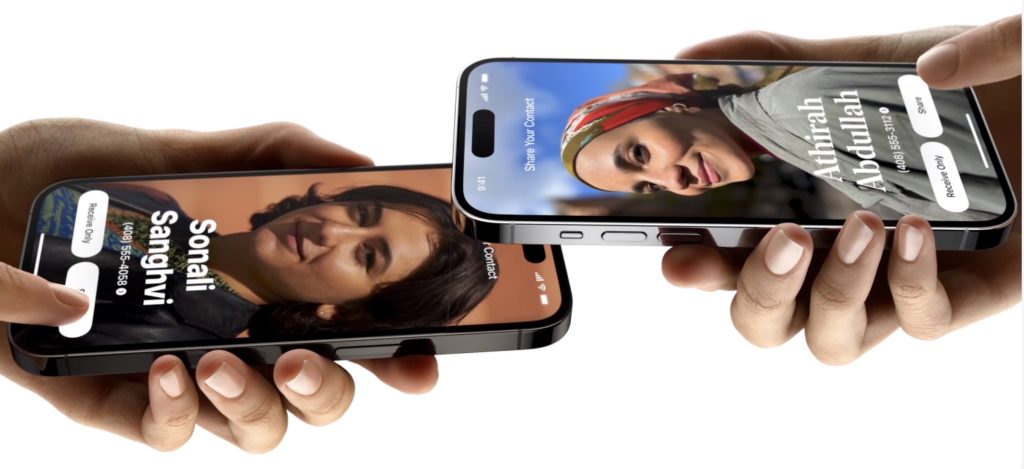
One of the prominent new features in iOS 17.1 and watchOS 10.1 is NameDrop, which makes it easy to exchange contact information with someone merely by putting your iPhone or Apple Watch next to theirs. When you do that, you can share your contact card and receive theirs, or just receive theirs—nothing happens unless you initiate an action.
Unfortunately, some police departments have posted warnings about NameDrop on Facebook, insinuating that it’s a privacy concern. Nothing could be further from the truth. First, NameDrop requires the devices to be almost touching, so it’s implausible that it could be triggered inadvertently, and second, you must unlock your iPhone and tap a button to share your contact information with the other person. If you lock your iPhone or move it out of range, Apple says the transfer will be canceled.
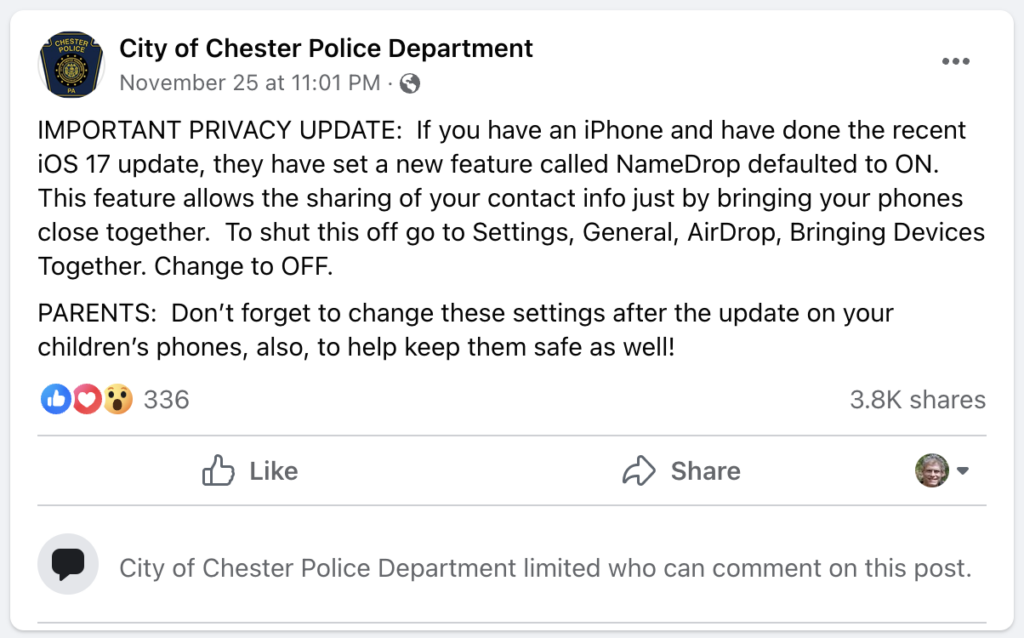
There’s no harm in turning NameDrop off by default other than losing access to the feature, but it’s a sufficient win that we encourage you to leave it enabled.
Imagine you meet someone new at a conference and want to share contact information. Previously, you would have had to find your contact card at the top of the Contacts app or Phone app, tap Share Contact, choose which fields to share, tap Done, and then share it via AirDrop (which may require them to enable their receive settings in Settings > General > AirDrop > Everyone for 10 Minutes), Messages (after entering their phone number), Mail (after typing their email address), or another method. It’s a pain.
Here’s how sharing contact information with someone new works in NameDrop. (It only supports sending new contact information, not updating an existing contact.) Both of you must have an iPhone running iOS 17.1 or an Apple Watch Ultra, Apple Watch Series 7 or later, or second-generation Apple Watch SE running watchOS 10.1. To get started, either:
- Share from an iPhone to another iPhone or an Apple Watch: Hold your unlocked iPhone close (almost touching) to the top of the other person’s iPhone or Apple Watch.
- Share from an Apple Watch to another Apple Watch: Open the Contacts app on your Apple Watch, tap your picture in the upper-right corner, tap Share, and then put your watch close to the other person’s Apple Watch (Apple’s animation shows them being positioned face to face).
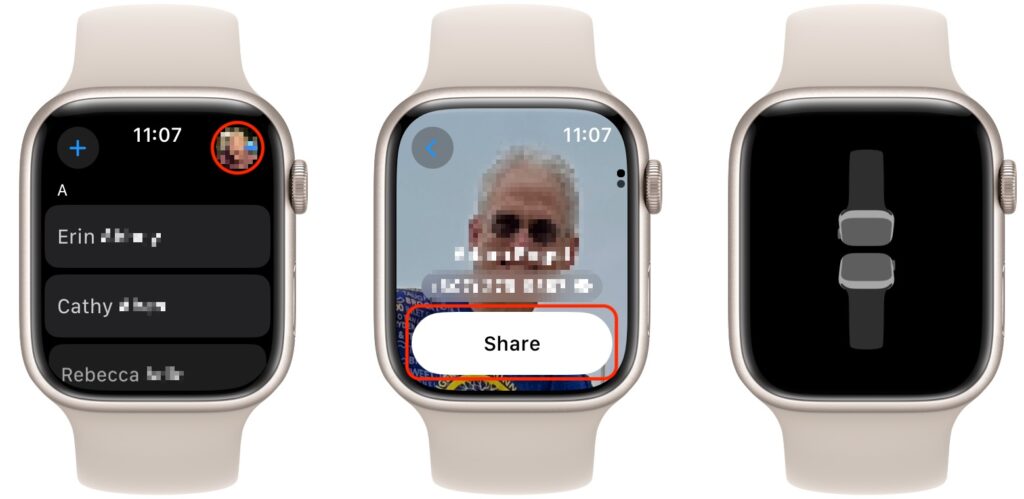
Keep the devices close together until NameDrop appears on both screens. On the iPhone, tap Share to exchange contact information or Receive Only to get theirs without sending yours. On the Apple Watch, you have only a Share button.
Next time you meet someone new and want to exchange contact information, give NameDrop a try. Alas, if they’re an Android user, you’ll have to fall back on the old, clumsy methods.
(Featured image based on an original by iStock.com/Caiaimage/Martin Barraud)
Social Media: Is iOS 17’s new NameDrop feature a privacy concern or a quick way to share contact info with a new friend? We think the privacy concerns are entirely overblown and explain how easy it is to use NameDrop.