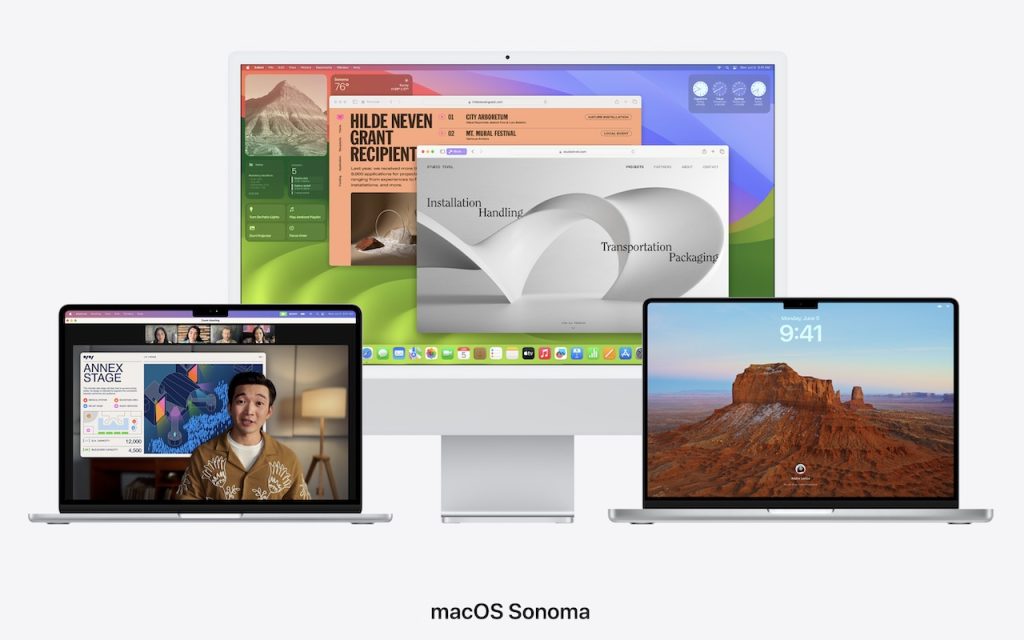
September is upon us, so Apple will soon start releasing major upgrades for all its operating systems. Note that we say “start.” Apple will undoubtedly release iOS 17 and watchOS 10 alongside new iPhone and Apple Watch models in mid-September. The company hasn’t said when it will release iPadOS 17, although it’s likely to accompany iOS 17. macOS 14 Sonoma may wait until the release of new Macs later in the fall. tvOS 17 isn’t interesting enough to worry about much either way.
Apple previewed these releases at its Worldwide Developers Conference in June, and many people have been testing the public betas since. Once Apple judges each of its operating systems to be ready for public consumption, the question arises—when should you upgrade?
Note that we say when and not if. There’s no harm in delaying a major operating system upgrade until Apple has sanded off any rough edges that slipped through testing. But waiting too long puts you at risk from security vulnerabilities, increases compatibility annoyances, and prevents you from taking advantage of new features. Plus, when you buy a new Mac, iPhone, or iPad after these operating systems have shipped, you’ll get the latest version, which could pose problems for your existing apps or compatibility with older hardware or workflows. It’s best to be prepared if you have to replace a device unexpectedly.
Given that we don’t know precisely when each operating system will come out, here’s our recommendation for the general upgrade order that we anticipate and how long we suggest waiting after the release appears, along with a few new features that might sweeten the deal.
Remember, always make a backup before upgrading a Mac, iPhone, or iPad so you can revert if necessary.
iOS 17
It’s usually safe to upgrade iOS fairly quickly because Apple puts significant effort into ensuring that the new iOS version is a good experience for those who buy the new iPhones that come with it. However, because iPhones are so crucial to our everyday lives, it’s worth delaying the upgrade to iOS 17 for a few weeks, just in case. After that, you can install it and enjoy the new features.
Foremost among them for those who make phone calls are contact posters that let you create a full-screen image others will see when you call and live voicemail that transcribes the message as it’s being left. Exchanging contact information is easier with NameDrop, which shares information wirelessly when you bring your iPhone near someone else’s iPhone or Apple Watch. You can also leave audio or video voicemail messages when someone misses your FaceTime call, and you’ll be able to have FaceTime calls on an Apple TV. Messages improves location sharing and can automatically notify friends or family members when you arrive at your destination. Autocorrect should work better, and iOS 17 can even offer inline predictions as you type. The new StandBy mode makes your iPhone more useful when charging on its side by displaying Live Activities, Siri results, and more.
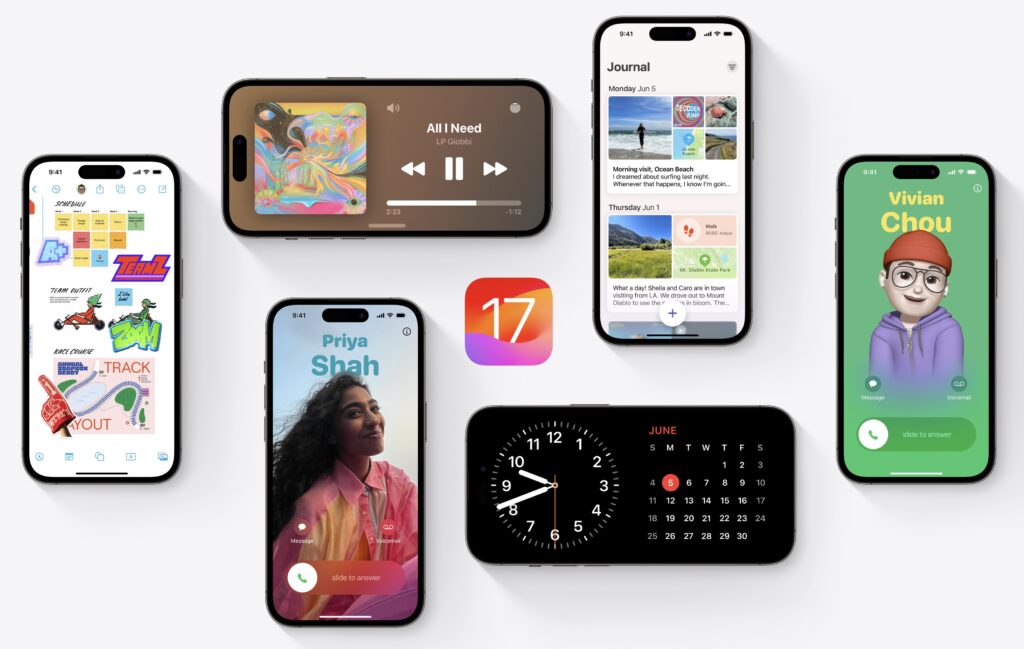
Some of these features, such as the enhanced autocorrect and inline predictions, don’t work on all iPhone models that otherwise support iOS 17. Others, notably NameDrop, require that other people also be running iOS 17. Finally, a few promised features won’t ship with the initial release of iOS 17, including the new Journal app, collaborative playlists in Music, and AirPlay in supported hotel rooms. There’s no reason to delay upgrading for those future features; consider them an incentive to update when they arrive.
watchOS 10
Once you upgrade your iPhone to iOS 17, there’s no reason to delay upgrading your Apple Watch to watchOS 10. Few of the changes are likely to force significant adjustments in your usage patterns.
The two new features you may notice quickly are the Smart Stack, a collection of widgets available on any watch face when you turn the Digital Crown, and the new shortcut for activating Control Center from within any app: just press the side button.
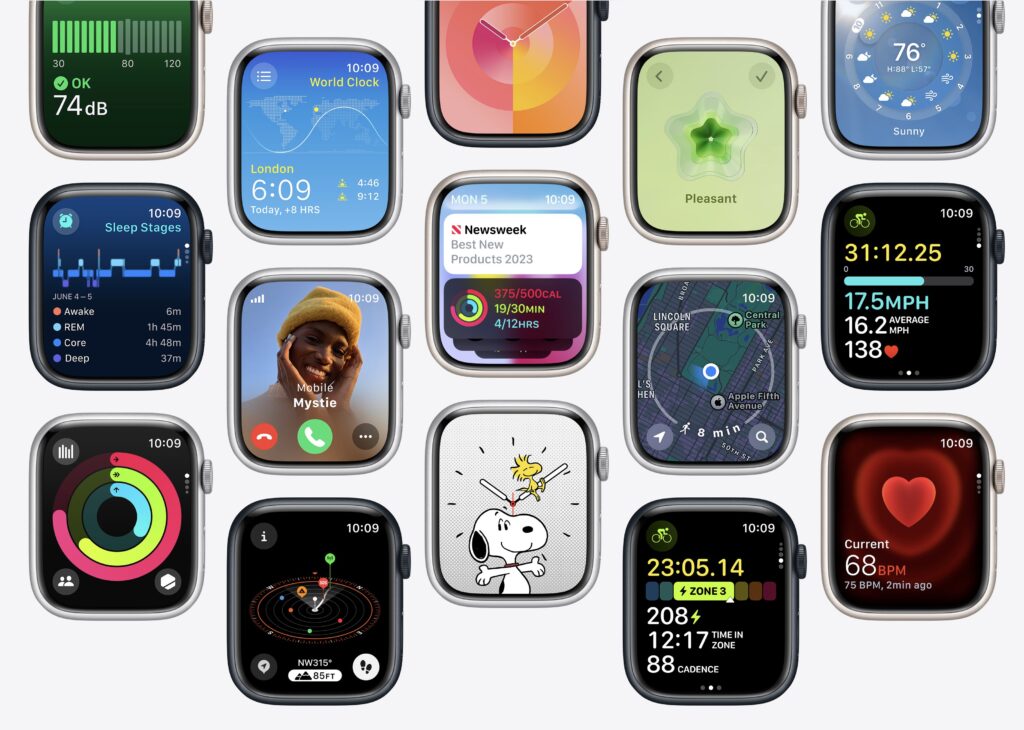
Other improvements include a Snoopy watch face, logging of mental health states, tracking of time outdoors for kids to improve vision health, and follow-up medication reminders for missed pills. Serious cyclists will appreciate new metrics when connected to Bluetooth-enabled accessories, a Power Zones view in Workout for those with power meters, and a cycling workout Live Activity for display on handlebar-mounted iPhones. Hikers get new views in the Compass app, trail information on the watch, topographic maps, and elevation alerts.
iPadOS 17
Last year, Apple delayed the release of iPadOS 16 until October but has made no mention of such a delay this year. Regardless of when iPadOS 17 becomes available, our general advice is that it’s OK to install it shortly after it ships. For the most part, iPadOS is a superset of iOS, so if you’re comfortable upgrading to iOS 17, think of iPadOS 17 similarly. The main caveat is when you rely heavily on a particular app. In that case, check with the developer to ensure your app is compatible before upgrading.
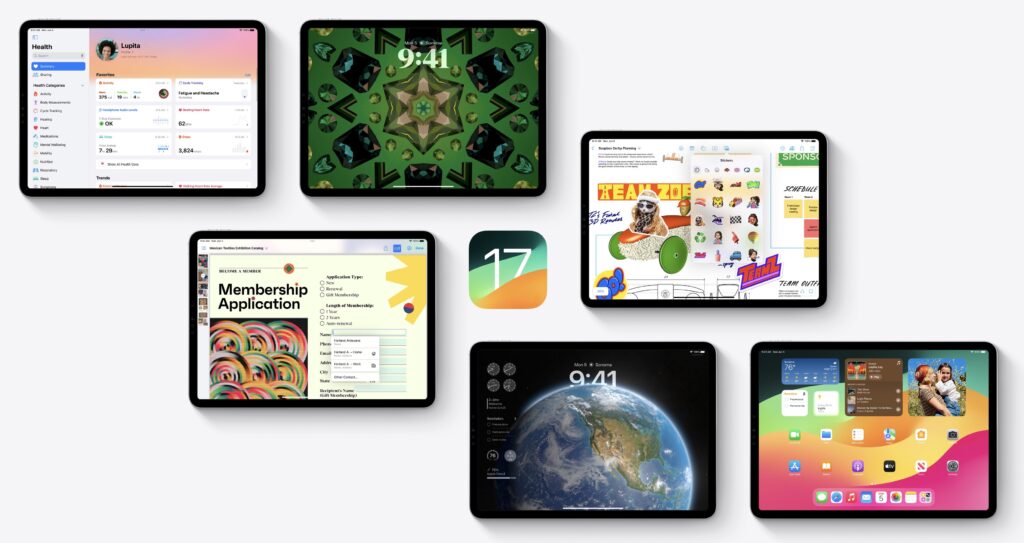
The most noticeable enhancements to iPadOS 17 appear on the Lock screen. As with iPhones running last year’s iOS 16, you can now customize the iPad Lock screen with wallpapers that go beyond what was possible on the iPhone, such as the motion effect for Live Photos on the Lock screen. The Lock screen is more useful and more attractive, thanks to support for Live Activities that provide constantly updating information and widgets that give you at-a-glance access to information like weather, battery levels, and upcoming events.
Also, widgets on the Home screen can be interactive, you can auto-fill PDF forms and collaborate on PDFs with others, the Freeform whiteboard app offers new tools and a Follow Along mode when collaborating, Stage Manager features more flexible layouts, and you can use an external display’s camera for FaceTime calls. Of course, iPadOS 17 also receives most of the changes in iOS 17.
tvOS 17
We don’t know when Apple will release tvOS 17, but it’s probably safe to update within a week or two of release, depending on the level to which you depend on your Apple TV. This year’s upgrade is more compelling than many previous ones, mainly thanks to support for FaceTime calls on the big screen. You’ll use the microphone and camera on an iPhone or iPad (running iOS 17 or iPadOS 17, naturally) to capture audio and video, displaying it all on your TV. It even supports Center Stage, so it will follow you as you move around. Other improvements include a new Control Center, the capability to use an iPhone to find a lost Siri Remote (second generation and later), curated Memories as screen savers, and support for third-party VPNs.

If nothing in that list encourages you to upgrade as soon as tvOS 17 ships, let your Apple TV (the fourth-generation model and later) upgrade itself when it gets around to it, assuming you have automatic updates turned on in Settings > Software Updates.
macOS 14 Sonoma
The hardest upgrade decision revolves around upgrading your Mac to macOS 14 Sonoma, and that assumes you can upgrade, given that Apple has dropped support for iMacs, MacBook Pros, and MacBooks released in 2017. (Consider it an excuse to get a new Mac—you’ll love the M-series Macs.) The problem with upgrading macOS is that Apple’s changes are seldom more compelling than keeping your Mac working the way it is now. It can take a month or three before the apps you use every day all work without compromise.
What capabilities does Sonoma promise? If you like widgets on your iPhone, you may also appreciate having them on your Mac desktop—both Mac-native widgets and those loaded and updated wirelessly from your iPhone. In Safari, you can turn websites into apps, and Safari also introduces Profiles that let you separate work and personal browsing history, extensions, Tab Groups, cookies, and favorites. The Presenter Overlay feature enables you to stay visible while sharing your screen. As with iPadOS 17, Preview helps you fill out PDFs faster with AutoFill, pulling your saved information from Contacts. Some of these features require Apple silicon, so your old Intel-based iMac may not match up to a newer Mac.
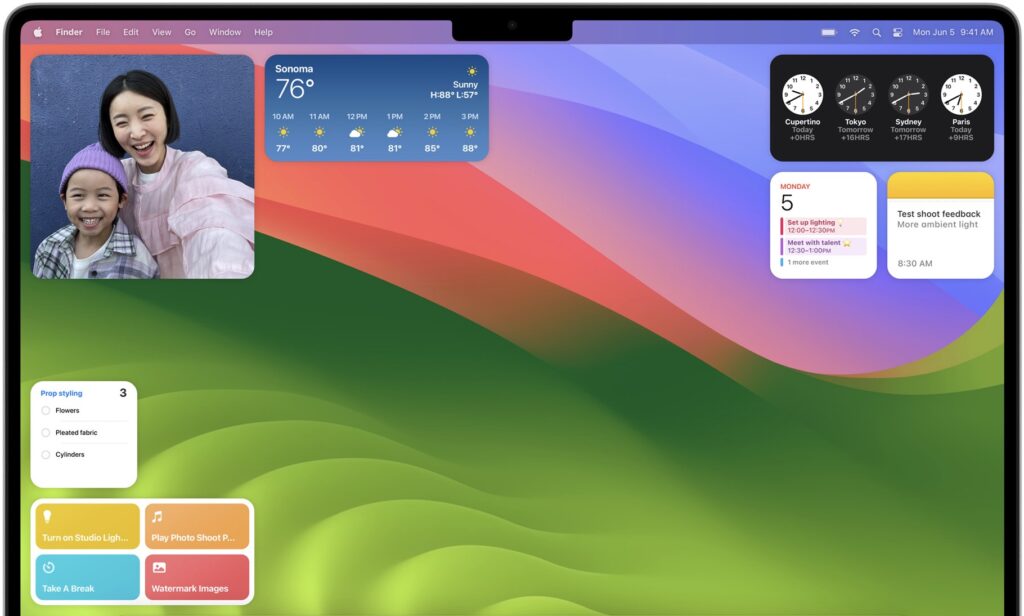
We always encourage caution when upgrading to a new version of macOS. Wait at least a few months before upgrading your primary Mac to Sonoma. App compatibility isn’t usually a long-term problem with iOS and iPadOS, but many people rely on older Mac apps that may not work in the latest version of macOS. Even once you’re confident that your apps will work properly in Sonoma, there may be workflow or intra-office compatibility concerns if some people upgrade and others don’t. And, of course, unanticipated bugs could crop up at inconvenient times—important work takes place on Macs! Please, do not upgrade to Sonoma without checking with us first. With luck, the start of the new year will have brought both the bug fixes and app updates necessary to give the green light.
(Featured image by Apple)
Social Media: Apple is gearing up to release macOS 14 Sonoma, iOS 17, iPadOS 17, watchOS 10, and tvOS 17. We briefly examine the features worth upgrading for and suggest when to upgrade each of your Apple devices.